Kepuli-TV
A Chrome and Firefox extension (Manifest V3) that plays Xtream Codes IPTV straight in the
browser. Data is fetched from the player_api.php API lazily: only what you
browse, when you browse it.
Recommended installation: Choose the extension store for your browser for straightforward installation and automatic updates.
| Browser | Extension store | Availability |
|---|---|---|
| Google Chrome | Chrome Web Store | Available |
| Mozilla Firefox | Firefox Add-ons | Available; requires Firefox 140 or newer |
Both listings are public and update themselves. Packages in GitHub Releases are intended for manual installation and testing; most users should use their browser's store version.
Intended use
Kepuli-TV is a player. It contains, distributes, hosts and indexes no media, channels, playlists or providers, and ships no address to any service. It does nothing without credentials the user brings.
It is intended solely for viewing content the user has the right to view: their own paid subscription, their own media, or other material they are permitted to watch. Users are responsible for ensuring that the service they use, and its content, are lawful in their country.
The author does not provide, sell, recommend or advise on obtaining IPTV subscriptions, and does not answer questions about them. Such issues are closed.
The software is provided as is, without warranty; see LICENSE.
Installation
For regular use, choose your browser's extension store from the table above. Both browsers' versions are available now. After installation, click the toolbar icon to open the player and configure your connection.
For development or manual installation from this repository:
- Open
chrome://extensions - Turn on Developer mode
- Load unpacked → pick this folder
- Click the extension icon → the player opens in a tab of its own
- Choose Paste subscription URL (M3U) to paste the complete address from your provider — the connection fields open filled from it, ready to inspect and edit — or Enter fields (Xtream Codes) to type them yourself.
Chrome 116 or newer, which is what minimum_chrome_version in the manifest
states.
In Firefox: node firefox/build.mjs, then about:debugging → This
Firefox → Load Temporary Add-on → firefox/dist/manifest.json. Firefox
140 or newer is what the AMO version requires, including Firefox's built-in
consent for sending credentials to the user's own service. A temporary add-on
lasts until Firefox closes; the permanent route is the signed package from
AMO, see FIREFOX.md. The same code runs in both browsers — firefox/ holds
only the Firefox manifest and the tools that assemble the package from it.
User guide
See Keyboard shortcuts for quick controls, including switching audio tracks, pausing playback and entering full screen.
Getting started
- Open the player using the Kepuli-TV icon in your browser toolbar.
- Paste your provider's M3U subscription URL, or enter the server address, port, username and password separately. You need your own subscription: the app does not include channels or content. The dialog says as much on a first run and links to this section; the caret starts in Server, and the eye at the end of the password field shows what was typed — a provider's password is long, random and entered by hand exactly once.
- Connect to the service. You can change your connection details and the interface language later in Settings.
Where the player opens
The player returns to the view you left, by two routes that answer different questions.
The address bar names where you are: #/live/Finland/312 is Channels →
Finland, narrowed to a topic within it, and a series you have opened rides
along in it. It is written as each list settles, so reloading the page
comes back exactly there, episode list and all. The address is written over
the current history entry rather than added to it: stepping back is what the
breadcrumb above the list is for, and the browser's own back button stays a
way out of the player rather than a walk back through every topic you have
touched. The browser tab's title says the same path in words,
Channels › Finland › Kids, with whatever is playing in front of it, so
that a window of tabs tells you which one is the player and where it stands.
An address typed or pasted into the bar is a navigation like any other.
The tab, the group within it and the chosen topic are also remembered as each list settles. That is the second route, and it is what opening the toolbar icon after the player's tab has been closed comes back to.
A search is a detour rather than a place: it stays out of the address, and reloading while one is running returns to the group the search took over from, which is where clearing the search would return anyway. Playback is not resumed by the reload either — an address that started a stream by itself would play something you did not ask for — but a film or episode keeps its own playback position, offered when you open it again.
What the account no longer offers is not restored. A group, topic or series the provider has renamed or removed, or one the channel-list editor now hides, falls back to the list underneath it, and the address is rewritten from where the player actually arrives.
Channels, movies and series
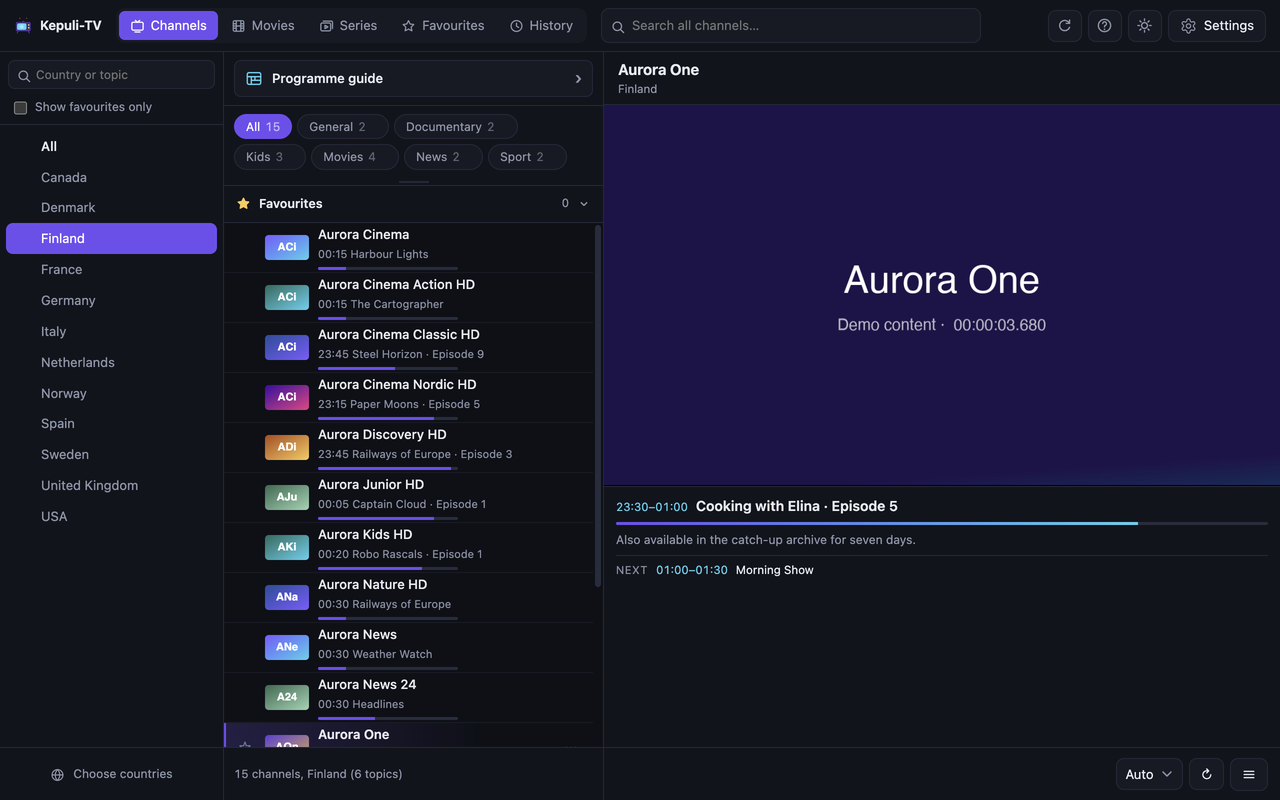
- Choose Channels, Movies or Series in the top bar, then narrow the list using the categories on the left. The search field finds titles within the selected content type.
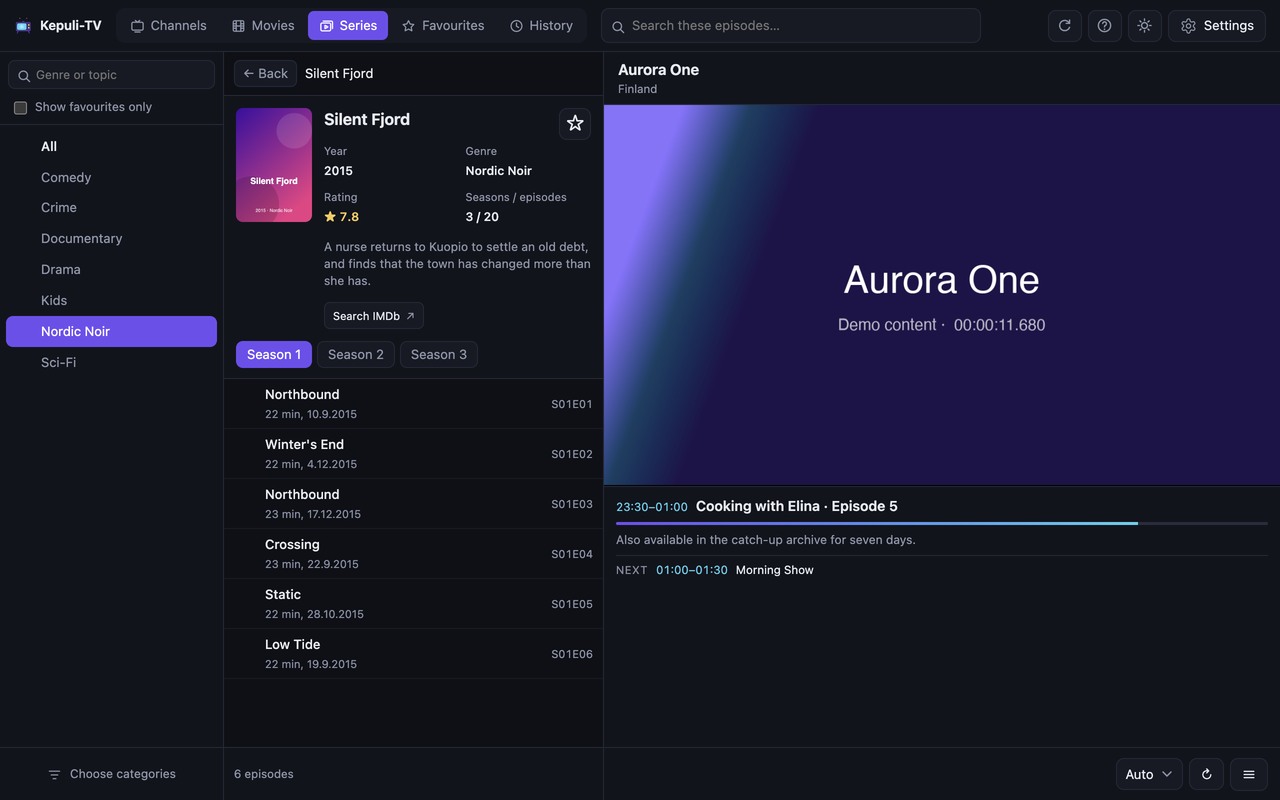
- Click a channel or movie to start playback. For a series, choose a season and then an episode. Back restores the parent list's scroll position, selected item and search, including when the series is inside a favourite category.
- Movie and series filters let you narrow titles by release year or rating and change their sort order. Filters use the available metadata, so some titles may be missing particular details. Active filters remain visible as removable chips even when the filter form is collapsed.
- Programme guide, above the channel list on the Channels tab, opens the TV programme guide. Catch-up playback is available when your provider supports recordings for that channel.
- The star button adds an item to Favourites. History lists the channels, movies and episodes you have recently started. Each account keeps up to 60 entries; older entries are removed as new ones are added.
At 600px wide or less, browsing and playback each use the full window width. Starting playback opens Player; Browse returns to the list while the stream continues. Starting a search or choosing a content tab also opens the list.
Closing dialogs and cancelling loading
Settings, the channel-list editor and enlarged covers use the same dialog style, with an X close button at the top right. You can also press Esc or click outside the dialog. Player keyboard shortcuts are inactive while a dialog is open.
- In Settings, X, Esc and clicking outside ask before discarding unsaved changes. Cancel discards the draft; Save applies it.
- In Organize channels, X, Esc, clicking outside and Cancel discard the draft. Save applies the changes to the current account.
- Enlarged covers close immediately without changing playback.
Loading a list is not a dialog at all. It used to be one, over everything, and that meant typing three letters into the search box — a search needs the whole list of its type — stopped the volume, the subtitle selector and full screen until it was over. It is a strip at the top of the list column instead, saying what is being fetched, how far it has come when the total is known, and carrying its own Cancel; Esc cancels it from wherever the focus is. Everything else keeps working while it runs, the picture included, and an interrupted channel-list load restores the previous list.
Playback and cover images
- Use the selectors below the player to choose audio and subtitles when the file offers selectable tracks. Set your preferred languages and subtitle appearance in Settings.
- Loading indicators appear in the video, audio and subtitle fields while the player reads the file's metadata.
- Click a cover image in the series details or below the player to enlarge it. Close the image with the close button, by clicking outside it or by pressing Esc.
- If playback fails in the browser, copy the address with the URL button and open it in a player such as VLC. The external player button can also hand playback directly to the player selected in your settings.
If something goes wrong
- Refresh lists fetches the content lists again from the server.
- If the connection fails, check the address and credentials in Settings and make sure your subscription is still active.
- If cached information is outdated, clear the cache in Settings. Resetting everything also removes your saved connection details.
- Report app bugs in GitHub Issues. Include your browser, a description of the problem and steps to reproduce it. Do not include credentials or playback URLs containing them.
Development
There is no build step: the files are, as they are, what the browser runs — so edit and reload.
Automatic loop
node dev/dev.mjs
Opens a Chrome profile of its own, loads the extension, opens the player and
reloads it whenever js/, css/ or player.html changes. manifest.json and
background.js require the whole extension to be reloaded, and the script does
that too. No dependencies; Node 22+ is enough.
The profile is ~/.cache/kepuli-tv-dev, i.e. separate from your own browser:
credentials are entered into it once and then persist. The port and the profile
can be changed with the environment variables KEPULI_DEV_PORT and
KEPULI_DEV_PROFILE.
By hand in your own browser
chrome://extensions→ Developer mode → Load unpacked- Click the icon → the player opens in a tab
- After a change:
| Changed | Enough |
|---|---|
js/*.js, css/player.css, player.html | reload the player tab (⌘R) |
manifest.json, background.js | the extension's ↻ on the chrome://extensions page |
A page reload reads the files from disk again — ES modules included — so the extension does not need reloading in ordinary work.
Firefox
node firefox/dev.mjs
The same loop for Firefox: assembles firefox/dist/ from the shared source,
starts Firefox with a profile of its own (~/.cache/kepuli-tv-firefox), loads
the add-on temporarily and opens the player. A change to js/, css/ or
player.html rebuilds and reloads the page; a change to background.js or
firefox/manifest.json reloads the add-on. It speaks Firefox's Marionette
protocol directly (firefox/marionette.mjs), so nothing is installed here
either. FIREFOX.md has the whole picture, including what was measured.
The focused UI regression check uses a temporary headless Chrome profile and the local mock catalogue, without changing the development profile:
node dev/uicheck.mjs
It checks selection, return positions, search, filter chips, narrow layouts,
uninterrupted playback and the guide, and writes screenshots to its temporary
directory. It needs the mock media from sh dev/mock/media.sh. If port 9341
is in use, select a free one with KEPULI_UI_PORT.
Run the shared browser regression suite in Firefox with:
KEPULI_BROWSER=firefox node dev/playcheck.mjs
It builds the Firefox package and runs the same catalogue, guide, settings,
playback and recovery assertions through Marionette. A scenario name, such as
catalogUi or subtitles, runs only that case. The mock media must exist
first (sh dev/mock/media.sh). Use a dedicated test profile: the suite resets
its extension settings and personal lists to demo data.
Note: --load-extension no longer works
Chrome rejects the flag silently (152 gives ERR_BLOCKED_BY_CLIENT on the
extension page). dev/dev.mjs therefore uses the DevTools protocol's
Extensions.loadUnpacked command, which also works as a reload when called
with the same path.
Troubleshooting
- The player's console: right-click the tab → Inspect
- The service worker:
chrome://extensions→ the extension's Service worker - Network requests show in the player's own DevTools window; the
player_api.phpcalls are the easiest way to see what the lazy loading really fetches - Clearing the cache (IndexedDB): Settings → Clear cache; removing everything, credentials included: Settings → Reset everything
The Pages site
docs/ is the GitHub Pages site at
bigtimesam.github.io/kepuli-tv. The
privacy policy and the terms of use are hand-written HTML in docs/privacy/
and docs/terms/. The front page is this README, rendered into
docs/index.html in the same style:
node dev/site.mjs
Run it after editing the README and commit the result; --check exits
non-zero if the page is out of date. The converter knows only what the README
uses — headings, lists, tables, fenced code, inline code, bold, italics and
links — and warns about anything else. No dependencies.
How the data is fetched
A large playlist is a poor starting point: the test server's get.php returns
75 megabytes and 272,000 lines, with no category identifiers and no information
about file formats. player_api.php gives the same thing structured and in
pieces, so the app loads in stages:
| Stage | What is fetched | Size | When |
|---|---|---|---|
| 1 | Categories (live + movies + series) | 43 kB | opening the connection |
| 2 | The chosen country's channels | 2–60 kB | on clicking a country |
| 3 | A type's whole list | 0.6–2.9 MB | only on search or the "All" selection |
| 4 | A series' episodes, a movie's details | 1–20 kB | series on opening; movies as their rows become visible |
| 5 | Programme data for a channel | 1.6 kB | for visible rows |
| 6 | A channel's whole programme table | 50–150 kB | browsing beyond known programmes or explicitly searching programmes |
Measured times on the test server: Albania (3 topics) 0.27 s, Sweden (31 topics) 1.1 s, USA (48 topics) 1.6 s. Everything loaded is stored in IndexedDB, so the next open is instant.
Because the fetching happens after the click, the list empties when the tab does. The tab is marked active straight away, and the rows arrive only once stage 2 answers; rows left standing in between would be the previous tab's, clickable under the new tab's heading. Measured on the mock server, a click on Channels followed at once by a click on the top row opened a series instead of playing a channel — the list is therefore emptied with the tab and fills a moment later.
Channel logos
The provider sends a logo address with every channel, and on the test account
those addresses point into mediaportal-nordic-logos, a collection that was
archived years ago: a good part of the list showed nothing at all. Channel
logos therefore come from tv-logo/tv-logos,
the maintained collection that took its place, and the provider's address stays
as the fallback for channels it has never had.
The two have no identifier in common. tv-logos is addressed by file name, the
API knows a stream id and a name, and the bridge is the name: FI: MTV3 HD and
countries/nordic/finland/mtv3-fi.png meet at the key mtv3, once the country
tag in front, the quality tag on the end and every difference of punctuation
and accent have been taken off both.
A wrong logo is worse than no logo — the viewer cannot tell that it is wrong —
so the key has to match a file name exactly, and where several countries own
that name the channel's own country decides it. The country comes from the tag
the name carries, and failing that from the column the channel is filed under:
TV3 is a channel in Sweden, Denmark, Norway and Lithuania, and without a
country the app leaves it to the provider rather than guess. Two more rules
earn their keep in the Nordics: a name matches with its word breaks ignored, so
that SkyShowtime 1 finds sky-showtime-1, and a name matches as the tail of
exactly one file name in its own country, so that the channels Finnish
providers list as Sub, Ava and Max find mtv-sub, mtv-ava and
mtv-max. Both are limited to one country and to a single match, which is what
keeps them from reaching: Hits ends both c-more-hits and mtv-hits in
Denmark, so it resolves to neither.
The collection's file list ships with the app as js/logoindex.js — 8,400 keys
in 78 country folders, 113 kB — rather than being fetched. Fetching it would
cost a host permission, a megabyte of JSON and a working connection for
something that changes a few times a month; the pictures themselves are
<img> requests, which need no permission. Refresh the list with:
node dev/logos.mjs
--check exits non-zero when it is out of date and --report says what
changed, folder by folder. The keys are made by the same slugify() the app
puts channel names through, so changing that function means regenerating the
index with it.
Categories on two levels
The provider encodes two levels into a single string: Sweden - Sport,
Sweden - Nyheter, Albania - Movies Club. The app splits them, which
condenses 519 live categories into 81 countries down the left-hand side in
alphabetical order. Choosing a country shows all of its channels, and the topic
buttons along the top narrow it to a subject. The buttons are in alphabetical
order, except for the country's own general category, which sits right after
the All button.
The button bar is as tall as its topics need, up to a ceiling of a quarter of the column: Albania's three take one row and reserve nothing, USA's 48 fill six or seven before the rest is left to scroll. A ceiling counted in rows rather than in the column's height would be right for the small countries and short for exactly those whose topics are worth reading. The bar's lower edge is a handle: dragging it sets the height by hand — down to a single row when the list matters more, up to 60 % of the column when the topics do — and a double click gives the automatic height back. The height is remembered between sessions, and it stays a ceiling rather than a height, so a country of three topics never leaves a band of empty panel below them.
The same splitting removes the Movies: and Series: prefixes from movies and
series, which only repeat the name of the tab.
Lists are sorted alphabetically by default — channels, movies and series, within a
category, within a group and in the All list. The provider's own order varies
from one category to the next and carries no meaning across the list.
Punctuation at the start of a name (|FI| Alien) is ignored, and numbers are
compared as numbers, so Rocky 2 comes before Rocky 10. When a repeating
prefix has been stripped from a row (below), the order follows the visible
name. Search still ranks matches by relevance, but equally ranked matches fall
into alphabetical order.
Channel order in Settings > Viewing says where the channel list starts: Name (A-Z), Name (Z-A) or Channel number — the provider's own numbering, and where a provider sends none, the stream id in its place. It is the answer to a list of hundreds: choose the order that already suits, then move the few favourites where they belong. Movies and series are unaffected.
Organize channels, at the right below the channel list, opens a personal live-TV editor. Switch between channels and categories, choose a country or All, and filter by name. Uncheck an item to hide it, or apply Hide shown / Show shown to the filtered set. Hidden items remain in the editor and can always be restored.
Drag a row by the handle at its left to move it. The rows underneath shuffle as it passes and the list scrolls when the row is held near an edge, so a channel can travel the whole way in one drag; Escape during a drag puts the row back. The handle also takes the keyboard: the arrows move the row one place, Home and End take it to the top or the bottom, and the focus travels with it. Moving a row within one country does not move that country ahead of the others.
Reset order returns to the order Settings chose, for channels or categories depending on the selected type; it keeps visibility, and it is offered only once something has been arranged by hand. Changes stay in the editor until Save; Cancel, the top-right X, Escape and clicking outside discard them.
Hiding a live category hides its channels in browsing, search, favourites, history and the guide, including channels that also belong to another category. The personal channel order applies to browsing and the guide; name search keeps its relevance ranking and favourites/history keep their collection order. Category order also determines country order in the sidebar. Movies and series are unaffected. These preferences belong to the server and account and survive cache clearing, reloading and switching away from the account and back.
The sidebar filter matches sub-categories too: the query sport brings up the countries that have sports channels even when the country's name lacks the word.
The repeating prefix
Once a country or a topic has been chosen, the beginning of the row name
repeats what the sidebar already says: under USA ▸ NHL, US: NHL Ice Center
Pass 3 FHD is distinguished from no other visible row by its prefix, which
only takes space from a narrow column. js/name.js strips two things from the
start of the name: a country code closed by a hard separator (US:, |FI|,
EX-YU |) and the words of the filters that are on.
Both go only when an absolute majority of the visible rows repeat them. That is
why USA Network HD survives intact under the country USA — the start of a
name is part of the name when the others do not repeat it — and why the
separator is part of the detection, or US Open Tennis would lose its
beginning. The chosen country's own codes are the exception: under Finland,
FI:, FIN | and FI - go whatever their share, because providers mix their
spellings and leave rows untagged, and a majority is then never reached — the
viewer would see FI: MTV among clean rows. A table in js/name.js maps the
sidebar's country names, in English, in the country's own language and in
Finnish, to the codes providers use. The prefixes come in either order (US:
NHL …, NHL US: …), so the passes are repeated until nothing matches any
more, and the whole name is always in the row's title text.
Only a filtered view is tidied. In search, in the favourites and in the history the rows come from different groups, so there the prefix is what tells them apart and it stays put. Inside a favourite category the filter is known even though the sidebar does not show it, and the names tidy up as in the browsing view.
A category as a favourite
Starring a single channel is not enough when the interesting thing is a whole category: Finland ▸ MTV Liiga is eight channels today and some other number next season. That is why there is a star on the sidebar country row and on every topic chip as well — the first picks the whole group, the second one category.
The Favourites tab lists them as a group of their own above the channels and the movies, and tapping a row opens the category's contents on the spot: the same list as in the browsing view, the same row names and programme data, but returning to the favourites is one tap. The contents are always fetched fresh, so channels that have appeared in the category show up without the favourite needing an update.
Only an identifier is stored — the type, the category_id and the visible
name — not the category's contents. A group favourite (Finland) stores the
group name and gathers its sub-categories only when opened, so it follows a
changing offering too.
The sidebar's filter names what the sidebar holds: countries on the channel tab, genres on the movie and series tabs. Below 760px there is no sidebar — three columns leave the list about 210px, which is a column of truncated names — and the same choice appears as a menu at the top of the list, which brings the list back to 360px at 720px wide.
The search in the header covers the whole list (the category filter is cleared visibly) and ranks matches by relevance: a match at the start of a word beats one found mid-word, so that yle raises the Yle channels rather than "KYLE COLLECTION".
The field names its scope: all channels, all movies, all series, favourites or history. Inside a series or favourite category, it searches that detail view instead. Clearing the search restores the previous group or type filter; switching content tabs starts with an empty search. Opening a series suspends the parent search and Back brings it back.
Names are matched with their marks folded away, and the words may come in any order. A provider's list is written in a dozen languages and read on one keyboard: elain finds "Eläinkanava", sodergran finds "Södergran" and oresund finds "Øresund", because a search that answers "no matches" is read as "there is no such channel" rather than as "type the umlaut". cnn news finds "News CNN" as well as "CNN News" — but the one that reads the way the query was typed still comes first, so the looser rule costs the exact match nothing. The same folding is used by the country and topic filter beside the list, by the filter in Organize channels, and by the programme search in the guide, so one spelling works everywhere a name is typed.
Features
- Programme data for visible channels: the programme on air and a progress bar on the list row, a description and the next programme below the player
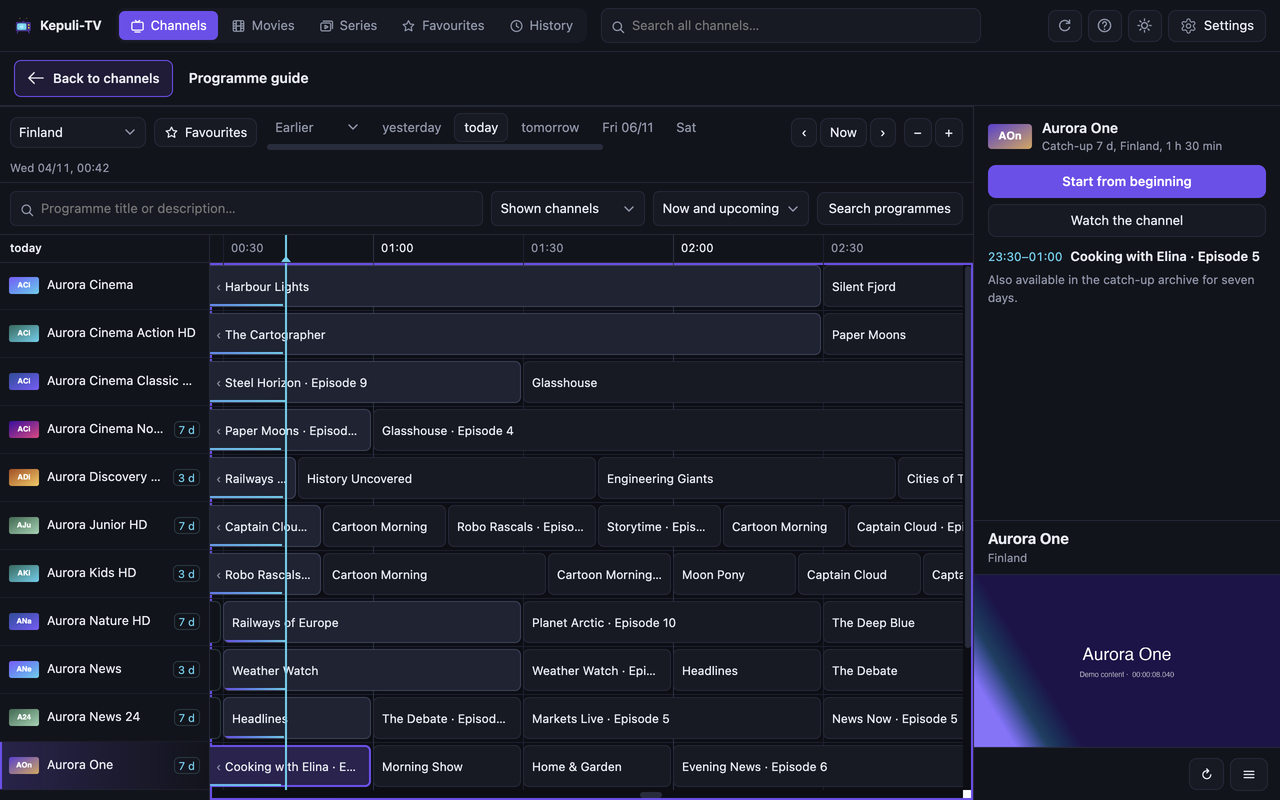
- An interactive programme guide (
g): channels as rows, time on the horizontal axis and a moving now line — see below - Catch-up for channels that have an archive: a past programme can be started straight from the guide; an ongoing programme offers Start from beginning when the channel advertises an archive
- Programme search by title and description, with a choice of shown or all visible channels and past/upcoming programmes
- Personal channel lists: hide and reorder live channels and categories
- Series by season, with cover art and plots from TMDB
- Movie details: plot, running time, rating, codec
- MKV plays without an external player: the container is unpacked on the fly into fMP4, seeking included, and an AC-3, E-AC-3 or DTS track is decoded in the player — in Firefox too. For the few tracks that are not decoded, Play without sound is on offer
- Subtitles from MKV files, drawn by the player in a look of your choosing — shadow, outline, yellow, box or high contrast, at a size of your choosing — and the chosen language carries over to the following episodes — see below
- Unplayable files are marked in the list before you click; once a file has been examined the mark sharpens according to its codecs
- Hand-off to an external player (the player's
☰menu orx) for what the browser cannot do — see below - Chromecast (the same menu or
c): a natively played file goes to the device through the Remote Playback API, and for the rest the menu explains how Chrome's own tab casting does it — see below - Resume positions remembered for movies and episodes, with a progress bar on the row
- Favourites and history as tabs of their own — a whole category can be a favourite too, see below
- Two languages: English and Finnish, switched in the settings without a page reload
- Automatic reconnection when a live stream drops — the death of a source is recognised in three ways: the server cuts the connection, the buffer is played out, or the picture freezes while the connection stays open. The viewer's own pause is told apart from these and is never overridden
- Technical details over the picture — resolution, bit rate, engine — for working out why a stream stutters. Off unless the settings ask for them: they answer no question about what to watch
Keyboard shortcuts
| Key | Action |
|---|---|
/ | go to the search box |
↑ ↓ PgUp PgDn | move in the list |
Enter | play / open a series |
Backspace | back to the series list |
space | pause |
f | full screen |
m | mute |
a | the next audio track, when the file has more than one |
s | star what the cursor is on — a list row, or the sidebar row or topic chip the keyboard stands on |
Delete | drop the history row the cursor is on |
n p | next / previous |
g | open and close the programme guide |
x | hand over to an external player, after a confirmation over the picture |
c | cast to a Chromecast |
These are the bare keys: a key held down with Ctrl, Cmd or Alt is left to the
browser, so Cmd+F and Ctrl+F open its search box rather than taking the
picture to full screen.
? opens the same list inside the player, along with the guide's own keys and
a note on why the browser's back button leaves the player rather than stepping
back inside it. Help in the top bar opens it too.
The interface is sized in rem, so it follows the reader's own font setting
in the browser rather than ignoring it. That takes the row heights with it:
the lists are virtualised, which means something has to divide by a row's
height, and that number is now asked of the browser rather than written down —
cssPixels and watchLength in js/vlist.js measure it and measure it again
when the setting moves under a running page. Measured, a 24px root gives 75px
rows and text to match, with the virtualisation still landing every row where
it belongs. A system asking for more contrast is answered too: the borders
that separate one panel from the next go to 3.7:1 and the muted text to
9.8:1.
Tab reaches the three places that hold a cursor of their own, one stop each:
the tab strip, the sidebar and the list. Inside the strip the arrows move
between Channels, Movies, Series, Favourites and History,
and Home and End reach its ends; the panel below takes its name from
whichever is chosen. Inside the sidebar the arrows move a cursor down the
countries or topics, Home and End reach its ends, and Enter or space
chooses the row the cursor is on — the row being marked as the cursor's, which
is a different thing from the group being shown. Both are listboxes, as the
list itself already was, so a screen reader is told what the eye can see: which
row is selected and which one the keyboard stands on.
In the guide the arrows move between channels and programmes, PgUp and
PgDn a screen at a time, Home returns to the present, + and − adjust
the timeline's scale, Enter starts playback and Esc closes.
The buttons
The top bar holds the five tabs, the search box, Refresh lists, Help and Settings at the far right. Refresh lists fetches the categories and the lists already loaded from the server again and empties the programme cache. Help opens this user guide. The ⛶ button is over the picture at the top right, with video statistics at the top left. It enters and exits full screen with the subtitles included. It appears on pointer movement, touch or keyboard focus, stays visible while paused and fades during uninterrupted playback. It is hidden until a video is loaded; an empty player has no full-screen button. The remaining player controls are below the picture:
| Button | Action |
|---|---|
Auto TS HLS | the engine for a live channel; Auto is described below |
| the audio selector | the track, on a file that carries more than one; a steps to the next |
| the subtitle selector | the language, on a file that carries subtitles |
Aa | the look and the size of the subtitles, over the picture they are judged against |
↻ | reload the stream |
☰ | the menu of the rest, opened upward over the picture |
The menu holds what is wanted now and then rather than during every programme:
Picture in picture, Cast to a Chromecast, Copy the stream address
and Open in an external player. Four buttons that said what they did in two
letters and an arrow are four lines that say it in words, and the row keeps only
what a viewer reaches for while watching. It opens upward — below the row is the
bottom of the window — and closes on the button again, a click outside, Esc or a
choice; the arrows, Home and End step through it. x and c still reach the
external player and the Chromecast without it. The hamburger turns gold while a
Chromecast is playing, as the Cast button used to.
There is no favourite star below the picture any more: every row in the list carries its own, and a series page has one beside its title.
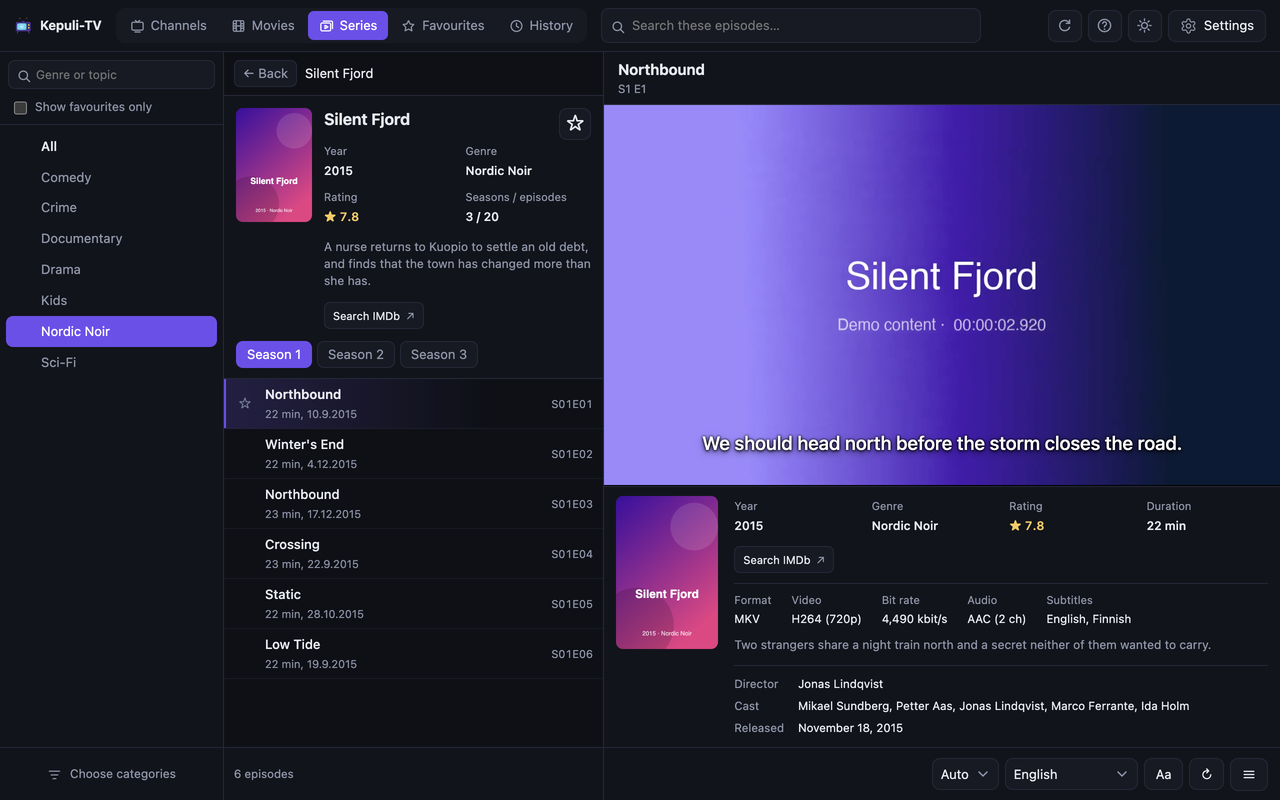
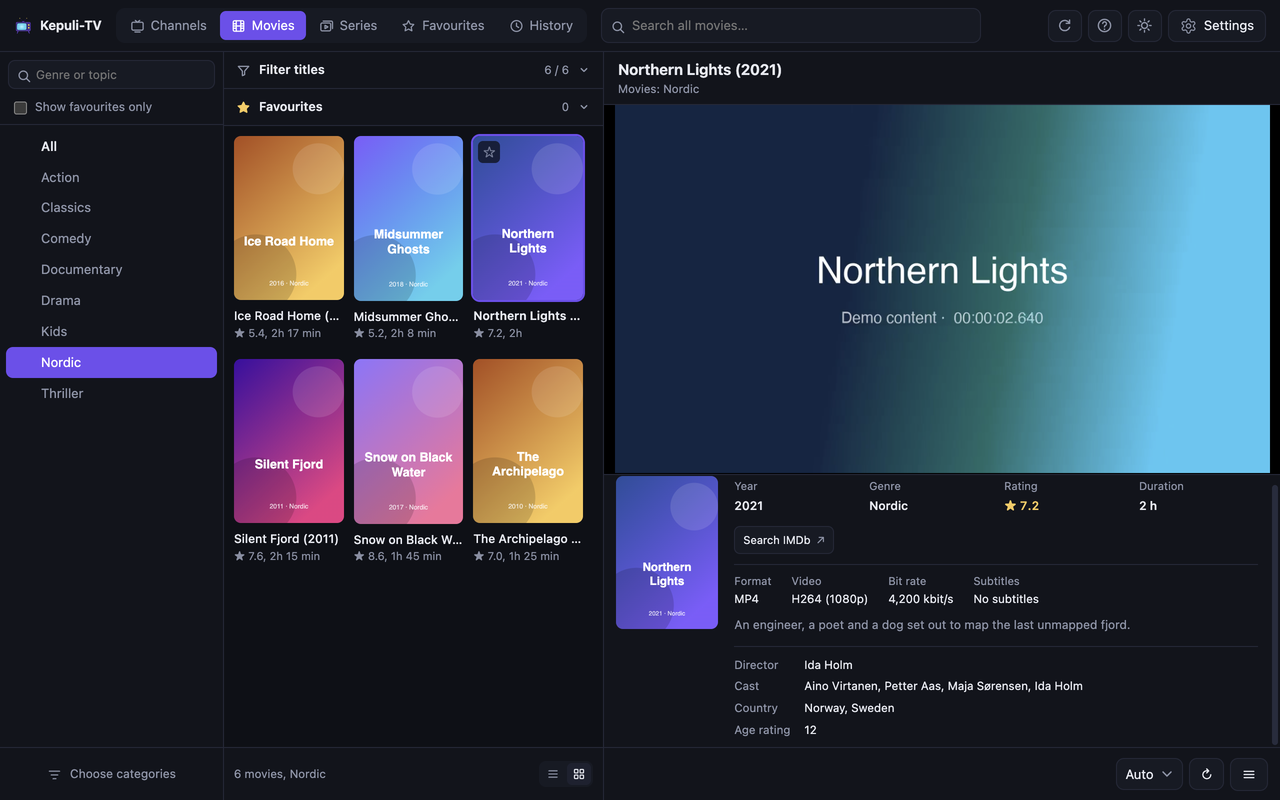
Series and movie details separate the year, genre, provider rating and episode count or duration into labelled fields. IMDb opens the title directly when its ID is available; otherwise Search IMDb uses its name and year. Trailer appears only for a valid YouTube trailer. Links open in a new tab; constructing them requires no external API calls or API keys.
Movie rows show running time (for example, 1h 35 min) instead of technical format badges. Missing durations load for visible rows, with two detail requests at a time and cached results reused. If the provider supplies no duration, it is omitted.
File format, video, audio and subtitles have separate labels in the playback details. The subtitle summary names at most three languages — English and Finnish first, then in alphabetical order — and counts the rest as + 2. No track count stands in front of them: a file holds more tracks than languages, and the two numbers side by side only invited a subtraction that was never meant to add up. Hovering reveals every language; individual tracks remain available in the subtitle selector. A file whose subtitles are all bitmap tracks names no language at all, and there the count stands instead, beside the warning.
Settings
Settings always opens on Connection, with four focused tabs:
| Section | Holds |
|---|---|
| Connection | the provider address and credentials, entered as Xtream Codes fields or an M3U address |
| Viewing | interface language, the channel order, automatic programme data, remembered playback positions and the technical read-out over the picture |
| Subtitles | style and size, with a local preview |
| Account & data | subscription details and cache information; an expandable Manage stored data section contains cache clearing and reset |
Changes on every tab remain drafts until Save. Switching tabs keeps the draft; Cancel discards it. The cross, Escape and a backdrop click ask before discarding unsaved changes. A slider drag released outside does not close the dialog. The tabs support arrow keys, Home and End.
Saving preferences applies them without reconnecting. Only changed connection credentials reconnect and reload the lists. A denied host permission or failed storage write leaves the draft open for correction or retry. An existing M3U connection does not require its address to be pasted again when saving viewing preferences. Cache clearing and reset require a clean form and remain explicit actions, with a separate confirmation for reset.
Before credentials exist, the tabs are hidden and Connect saves the initial connection. Otherwise the same Save action is available from every tab.
In Subtitles, the style and size controls sit above the preview. The sample keeps its two lines and scales down to fit the available space, including at 72 px and in narrow windows. This scaling affects only the preview: playback and the saved setting use the exact selected size.
The look of the subtitles is also under the player's own Aa button, which appears beside the subtitle selector on a file that carries subtitles. It opens the same two controls over the picture, so the size is judged against what is being watched rather than against a preview in a dialog; the subtitles rise out of the popover's way while it is open, as they do for the browser's controls. The Aa controls apply and save immediately; Settings previews locally and applies the same stored setting only on Save. In full screen neither is reachable, as neither was before.
The cache belongs to the server and the account. Saving a connection whose server, port, protocol or username differs from the previous one empties it first, so another server's listing — or another account's on the same server — never shows under the new one. The password is not part of the comparison, so correcting it costs nothing.
The programme guide
The guide is a grid with a column beside it: the programme's own details on top of that column and the picture below them, and the grid taking the whole height to their left.
It used to be three bands — details and picture side by side across the top,
then the controls, then the grid in what was left. The top band was
minmax(240px, 30vh), a fixed share of the window whatever happened to be in
it, so a 900px-tall window spent 270px on 105px of details and a picture that
wanted 194. The grid, which is the reason anyone opens the guide, got the
remainder. Measured against the mock server, visible channel rows:
| Window | Three bands | Sized to content | Column beside the grid |
|---|---|---|---|
| 1024×800 | 4.6 | 4.8 | 9.1 |
| 1280×800 | 6.6 | 6.9 | 11.7 |
| 1440×900 | 8.1 | 8.6 | 13.8 |
The picture keeps its own 16:9 shape rather than stretching to whatever height
a row hands it — a stretched picture is only letterboxing — and the details
above it take the slack instead, because a long description is the thing that
actually grows. The rule that shapes it excludes :fullscreen, or the ratio
would follow the picture there and letterbox it against the screen.
Programme guide, above the channel list on the Channels tab (or g),
turns the whole window into a grid view: channels as rows,
time on the horizontal axis and a moving now line. The video continues in the
top right corner and the selected programme shows on the left with its
description. The grid shows the same set of channels as the list, so the group
selection and the search narrow the guide as well.
Back to channels at the top left returns to the channel list. You can
also close the guide with Esc or g.
The timeline runs back as far as the longest advertised channel archive in the
current view, with at least two days of history, and five days forward. Invalid
provider durations are bounded to one year. Past programmes are
dimmed; those the channel's archive reaches get a Watch the recording
button. A programme continuing past the left edge is marked with ‹ and its
name is nudged into view.
Start from beginning is offered for an ongoing programme on an archive channel. Whether the provider makes that programme available before it ends depends on the service; the archive may stop at its latest available moment. Back to live returns to the channel. Archive playback is finite: reaching its end does not trigger the live reconnection loop. Reload and Retry keep the archive programme selected. This is provider catch-up, not a local DVR buffer.
The guide's separate Search programmes form searches programme titles and descriptions. It searches the shown channels by default; All visible channels loads the full channel catalogue and excludes personal hidden channels and categories. Only channels with programme identifiers can be searched. The period selector includes upcoming programmes, past programmes or both. Search is explicit rather than triggered by every keystroke, makes at most four search requests in parallel, and reuses full programme tables in the guide cache. Results and channel progress appear as answers arrive; failed channels are counted separately. Stop search keeps partial results. Selecting a result shows its description and live/catch-up actions; Back to guide restores the grid. Closing the guide or changing channels' scope cancels the search.
Programme data is fetched at three levels of detail into the same cache: a list row needs four programmes, looking ahead in the guide needs 40, and the whole programme table is fetched only when the grid is scrolled past the known programmes. A coarser level is never fetched over a finer one, so a channel visited in the guide does not fall back to four programmes as the list is browsed.
Playback routes
| Source | Engine |
|---|---|
| Live (MPEG-TS) | mpegts.js → MediaSource |
Live (.m3u8), or the fallback from TS | hls.js |
VOD .mp4 .m4v .mov .webm | the browser's own player |
VOD .ts .flv | the header decides — the extension does not hold |
VOD .mkv | Matroska unpacked into fMP4 → MediaSource |
VOD .avi | not supported |
Auto tries TS first on live channels (lower latency) and moves to HLS if TS
does not start within 20 seconds. On the test server HLS often starts faster
but trails the live edge by a segment length.
In the test material 54% of the movies are .mp4 and 44% .mkv. For
unplayable ones, Copy address and Open in an external player are
offered.
External player
Unpacking and wasm audio cover most of the library, but not all of it: the AVI
container, VC-1, 10-bit H.264 and bitmap subtitles (PGS, VOBSUB) stay out of
the browser's reach. A desktop player handles them natively and takes the
Xtream stream URL as it is. The hand-off is always manual — from the player's
☰ menu, the x key, or a button in an error message — and never
happens by itself.
There were two routes, one is left: a one-item .m3u is downloaded from a
blob, and the operating system opens it with whichever player is registered for
.m3u — for VLC that is public.m3u-playlist in its Info.plist. Two clicks,
no new manifest permissions and no bridge between the extension and the
operating system.
Player-specific URL schemes (iina://, mpv://) used to be selectable and were
dropped: they saved one click but required a choice from the user and knowledge
of what they had installed. VLC does not register a vlc:// scheme on
macOS — its Info.plist lists only http https ftp mms mmsh rtmp rtmpe rtmps
rtmpt rtp rtsp sftp smb udp — so for the most common player the file route was
the only one anyway.
The resume position travels along: #EXTVLCOPT:start-time= is written into the
playlist at the point the browser had reached. Playback is stopped before the
hand-off, because the account allows one concurrent connection — otherwise a
stream the browser keeps open would leave the external player silent.
The URL carries the credentials, so a downloaded .m3u is as sensitive as the
account itself, and the app now says so where it matters rather than only here.
The x key asks over the picture before it hands over — one keystroke should
not stop playback and write a password to disk, and the focus is dropped to the
body after every click, so nothing is holding the keys. The ☰ menu item is
deliberate already, a menu opened and a line chosen in words, and goes straight
through; both say afterwards that the file carries your credentials and is
worth deleting.
Chromecast
Cast to a Chromecast in the player's ☰ menu (or c) works in two ways, and
CHROMECAST.md holds the assessment behind them.
A file the browser plays natively — .mp4, .m4v, .mov, .webm — goes to
the device through the Remote Playback API: Chrome's own device picker opens,
and Chrome sends the compressed picture and sound to the device as they are.
Nothing is re-encoded, the server needs no CORS headers, and the browser keeps
the one connection the account allows. The tab has to stay open, and
Chromecast shows on the line below the player's title while the device plays.
Everything that runs through MediaSource — live channels, HLS, the MKV
unpacking — is outside that API's reach on desktop Chrome, which accepts only
a plain http(s) source for it. For those the button explains the route that
does work: Cast… in Chrome's menu, this tab, then f. Once the video is
full screen Chrome switches by itself from mirroring the screen to sending the
compressed stream, MediaSource included. Subtitles are drawn by the player over
the picture and travel only while the screen is mirrored, not after the switch.
The Google Cast SDK is not used. Manifest V3 forbids loading it from Google's servers, and what it offers — the device fetching a URL by itself — would cover only MP4 files and HLS from servers that send CORS headers; neither MPEG-TS nor Matroska plays on the device's own player.
Unpacking Matroska
Chrome will not take Matroska, but the H.264 or HEVC inside it is fine as it
is. js/mkv.js demuxes the clusters from the stream, js/mp4.js packs the
frames into fMP4 segments and js/remux.js feeds them to MediaSource. The
picture is neither decoded nor re-encoded — only the container changes.
Three points needed care:
- Decode time. Matroska stores only the presentation time. Because of B-frames the two differ — in a measured episode 740 of 1569 frames had a PTS that went backwards from the previous one. The DTS is obtained by sorting a segment's timestamps ascending and handing them out in decode order.
- Time units. For video, 90,000 ticks per second divides evenly at every common frame rate. For audio the sample rate is used and frames are chained back to back, because Matroska's millisecond resolution would round an AAC frame's 21.333 ms duration and the error would accumulate into seconds over an hour.
- One connection. The account allows one concurrent download, so the header is read from the same stream playback continues from. Seeking cuts the stream and opens a new one at the offset the Cues table points to; the table is at the end of the file, so it is fetched only if a seek happens.
An interrupted download resumes from the start of the last complete cluster. If the file is broken instead — the library held an episode followed by three megabytes of zeros and no cluster at all — playback ends at the intact point and the viewer is told how far the picture went.
Subtitles
The unpacking picks up the subtitle tracks along the way (js/subs.js). A
block's text is handed to the browser as a VTTCue on a text track of the video
element: the browser keeps the time — it fires cuechange as the cues come and
go — and offers the tracks in its own subtitle menu. The choice is made from the
selector below the player, and the language — not the track number — is
remembered, so the next episode of a series opens in the same language. The
default is Finnish when the file has a Finnish track.
A track that carries no Language element at all is English: that is the default
Matroska gives the element, and it is how ffmpeg and the desktop players read
such a file. Reading it as unknown instead put an English track in the selector
under Unknown language, and left the summary counting a language it never
named. A track the file marks und outright stays unknown, and the summary names
it as such rather than dropping it.
The selector is in alphabetical order for the interface language: the file's own order is arbitrary, and in a list of thirty tracks the right language cannot be found unless its place can be guessed.
The drawing is the player's own (js/subdisplay.js): the active cues are laid
out as HTML in a layer over the picture. The browser's drawing was used first
and fell short in two ways — a two-line line of dialogue came out as two boxes
with a gap between them, and ::cue takes only a colour, a font, a shadow and a
background, so no look could be built on it. The layer gives one box per cue and
five looks to choose from in the settings, with a preview: shadow — the default,
no box — outline, yellow, box and high contrast. The size is set in pixels with
a slider and is the same in full screen: the viewer sets what reads well on
their screen, and a larger picture does not turn it into a larger text. The
small, medium and large of the earlier settings are read as the pixels they
measured in a window. The looks are written into ::cue as well, as far as
::cue goes, for the one case where the browser still draws (below).
Full screen is therefore the picture's wrapper rather than the bare video
element, which would leave the layer behind: the button over the picture,
a double click on the picture and f all take the wrapper, and the browser's
own full-screen button is removed from the controls (controlslist). Firefox
does not know controlslist and keeps its button; when that takes the video
itself to full screen, the browser's drawing is switched back on for the
duration. The browser also lifted the subtitles above the controls while those
were on show, and their visibility cannot be read from outside, so the rule is
imitated: the video is paused, or the pointer moved over the picture within the
last three seconds.
The cues of every text track are collected as the file is unpacked, even though one is visible. The alternative would be reading the file again when the track changes, which would take the single allowed connection and interrupt the picture. After a seek the same blocks arrive again, so a cue that has already been added is recognised and skipped.
Limits:
- SRT, ASS/SSA and WebVTT are accepted. Bitmap formats (PGS, VOBSUB,
DVBSUB) are images and cannot be handed to a
VTTCue, so they are left out of the selector — the list row's "34 subtitles" counts them in, and the details below the player add "(not supported)" when a file has nothing else. A file with no subtitles at all says so there too, rather than leaving the viewer to notice that the selector never appeared. - ASS style codes (
{\an8},{\pos}) are stripped and italics survive; backgrounds and effects made with drawing commands are not rendered. - Only the unpacking route knows about subtitles. The
mov_textof a natively played MP4 is still left out, because Chrome does not render it.
What unpacking opens up
Measured on a sample of 1,500 series (23,628 episodes):
| Share of episodes | |
|---|---|
| Played before unpacking | 44.6% |
| Unpacked, audio as it is | +21.6% → 66.2% |
| Unpacked, audio decoded (AC-3/E-AC-3/DTS) | +27.5% → 93.7% |
The last row needs a decoder of its own, because Chrome has neither AC-3, E-AC-3 nor DTS. Of 45 ac3/eac3 episodes not one had a second track Chrome supports, and 43 had a single audio track, so an alternative track rescues few of them. Play without sound therefore remains only for the few tracks that are not decoded (TrueHD, or MP3 in MKV, for instance).
Choosing the audio track
A file often carries more than one: the original and a dub, a director's
commentary, an audio description. Only one of them reaches MediaSource, and
the choice is the player's — neither browser offers
HTMLMediaElement.audioTracks. Measured, Chrome 152 and Firefox 155 both
answer false for it, so nothing below the player can pick a track, and a
natively played .mp4 gets whichever track the file marks default.
js/audio.js makes the choice, and js/probe.js reports it below the
player from the same function — so what is written there and what is heard
cannot disagree. The order is:
- The language the viewer chose last, if the file has it. The language is what is remembered, not the track number, because the numbering varies from one file to the next — the same as for the subtitles.
- Otherwise an untouched track before a decoded one. That is what saves discs carrying both AC-3 and AAC: an AAC track goes to MediaSource as it is, and passing it through always beats decoding and re-encoding, even when the file marks the AC-3 one default.
- Between two tracks of the same kind, the one the file marks default; and failing that, the file's own order.
A commentary or an audio description is passed over unless it is asked for
by language, or unless it is all the file has. Matroska's own flags for
them (FlagCommentary, FlagVisualImpaired) came late and are rarely
written, so the track's name is read as well — Commentary,
kommenttiraita, kuvailutulkkaus.
The name in the selector is built from the language, the track's own name
and the format: Finnish · AC3 5.1, English · Commentary · AAC stereo. A
name that only repeats the language is left out, so a Finnish track called
Suomi does not read Finnish · Suomi.
Changing the audio track
The selector sits below the player next to the subtitle one, and appears
only when there is a choice to make — one track is not a decision. The a
key steps to the next track and names it in a toast, because the eye is on
the picture rather than on the selector then. The choice is remembered as a
language, so the next episode opens on the same one.
Changing track mid-playback costs a read of the file. The account allows one connection, so the other track is not on the browser's side: it has to be fetched again. What is dropped, then, is only the sound — the picture stays in its buffer, which holds up to a minute ahead — and the download starts again from the cluster the playback position sits in. Measured, the picture runs through the change without stopping and the sound comes back in about a second.
Two things had to be got right for that. The SourceBuffer keeps its
identity and is re-pointed with changeType, because removing an audio
buffer from under a running playback changes the element's track set;
a new init segment follows in either case, since the sample rate and the
channel count differ from track to track even within one codec. And the
download's back pressure, which used to look at the video buffer alone,
now looks at the shorter of the two — otherwise the minute of picture
already buffered would stop the very download the sound is waiting for.
A switch to or from an AC-3, E-AC-3 or DTS track builds or drops the decoder on the way; between two tracks of the same codec the decoder is only restarted.
Two limits remain. A natively played .mp4 cannot be switched at all, for
the reason above. On a live channel mpegts.js takes the first audio PID
of each codec from the PMT and offers no way to name another, and the
vendored build is minified — the track that comes is the track that plays.
Decoding the audio track
The decoder is FFmpeg's own, built as wasm (vendor/ffaudio, LGPL 2.1+,
628 kB). A hand-written AC-3 decoder would cover only part of it: E-AC-3 is not
the same bitstream but adds AHT, spectral extension and substreams, and DTS is a
third separate one. The build is dev/wasm/build.sh, and --test compares the
output with ffmpeg's own from the same bitstream — in every case the difference
is float rounding (~1e-7), including the 5.1 downmix and the 32 kHz conversion.
MediaSource will not take PCM, so the decoded audio is re-encoded with the
browser's own AudioEncoder (js/transcode.js): to AAC where the browser has
that encoder — Chrome on macOS and Windows — and otherwise to Opus, which is
what Firefox and Chrome on Linux encode. MediaSource takes both in MP4, with an
mp4a or an Opus sample entry from js/mp4.js; the choice is made once per
page, a candidate counts only once it has actually encoded, and FIREFOX.md
has the measurements for both. node dev/audiocheck.mjs
firefox (or chrome) makes them again: the real modules run inside the
extension, and what they produce is decoded with ffmpeg and compared with the
wasm decoder's own reference. Two measured constraints set the format:
- The AAC encoder accepts only 44,100 and 48,000 Hz, Opus wants 48,000, and neither tolerates the channel count changing mid-track. AC-3 allows 32,000 Hz, and the library holds files where mono turns into stereo. That is why the wasm decoder brings everything down to a fixed format (stereo, 48 kHz) before the encoder. The downmix is asked of the decoder itself, which uses the stream's own cmixlev/surmixlev levels; swresample's generic matrix gave a different, clipping result when measured.
- The encoder has a priming delay that it neither reports nor corrects — 2112 samples, or 44 ms, for AAC when measured, which is macOS's AudioToolbox figure and therefore not portable, and 312 samples (6.5 ms) for Opus in Firefox. Without correction the audio would lag the picture by that much throughout. The figure is therefore measured at run time: a known impulse is encoded and decoded back with the browser's own decoder. Measured, the chain lands sample-accurate with either encoder and does not creep at all over 60 seconds.
Back pressure is handled by waiting rather than flushing: flush() forces the
encoder to emit a partial frame padded with silence, and the frame chain would
stretch every time — measured, 60 seconds of picture came out as 69 seconds of
audio.
Reading the file header
The extension is not enough to decide on, and the API's metadata cannot be trusted. Measured from the test server (1,500 series, 23,628 episodes):
get_vod_inforeturns no codecs at all — so nothing is known about a movie beyond its extensionget_series_inforeportspngormjpegas the video codec for 4.7% of episodes: that is the cover image, which ffprobe sees as the first track- VOD files with a
.tsextension were Matroska without exception in the sample (10/10) —.mp4and.mkv, on the other hand, held true (8/8 each) - the audio decides more often than the container: of the mkv episodes around
42% are
aacand 53%ac3/eac3/dts, which Chrome will not decode by any route
js/probe.js therefore reads the first 256 kB of the file with a single Range
request and parses Matroska's Tracks element: the container, the codecs with
their profiles, the audio tracks and the subtitles with their languages. The
profile is needed because Chrome does not decode 10-bit H.264 — a bare avc1
would give too hopeful an answer. The result is stored in IndexedDB and shows on
the list row without a new request.
The header is not read up front: the account allows one concurrent connection,
so the read happens only when the extension does not promise playback, when the
container is known to be unreliable (.ts), or when every engine has failed.
Then the error message states the reason: "The audio track is MP3, which Chrome
does not decode. The picture would play, the sound would not." rather than
merely the extension.
Structure
manifest.json MV3 manifest
background.js a click on the icon opens the player
player.html the whole interface on one page
css/player.css
js/api.js player_api.php client, base64 EPG, time zones
js/xtream.js building the Xtream URLs, parsing a pasted M3U address
js/library.js the lazy data layer: grouping, cache, search
js/epg.js programme data on a queue, 4 concurrent requests
js/epggrid.js the guide grid, virtualised in both directions
js/programmesearch.js cancellable programme search and virtualised results
js/channelprefs.js per-account channel visibility and ordering helpers
js/channeleditor.js draft editor for live channels and categories
js/modal.js shared close buttons, Escape and backdrop dismissal
js/db.js IndexedDB: a TTL cache
js/config.js settings, favourites, history, resume points, the remembered view
js/i18n.js the interface language: dictionaries, t() and static HTML
js/playback.js engine selection, fallbacks, watchdog
js/probe.js reading the file header: container, codecs, subtitles
js/audio.js which audio track is played, and what it is called
js/lang.js language codes and the names shown for them
js/ebml.js EBML primitives and the Matroska header
js/mkv.js Matroska clusters from a stream into frames
js/mp4.js fMP4 segments for MediaSource
js/remux.js the unpacking engine: downloading, seeking, buffers
js/ffaudio.js AC-3, E-AC-3 and DTS decoding with wasm
js/transcode.js decoded audio back to AAC, or to Opus where there is no AAC encoder, for MediaSource
js/subs.js subtitle tracks from MKV into the video element's own tracks
js/subdisplay.js the subtitle layer over the picture: the looks, the controls, full screen
js/vlist.js the virtualised list
js/listnavigation.js item selection, accessible focus and return positions
js/cataloguesearch.js search scope, debounce and restoration of borrowed filters
js/playerlayout.js full-width browsing and playback in narrow windows
js/rows.js painting the list rows
js/name.js a repeating prefix off the row names in a filtered view,
and the country a name or a category label points at
js/logos.js channel logos from tv-logos, matched to a channel by name
js/logoindex.js the tv-logos file list, generated by dev/logos.mjs
js/format.js formatters
js/route.js the place we are in, as an address: #/live/Finland/312
js/app.js view coordination, playback actions, settings and keyboard
js/permissions.js requesting and checking optional host permissions
js/external.js hand-off to an external player: a one-item .m3u
icons/ 16, 32, 48, 128 px extension icons
brand/ the sources of the brand graphics, not part of the package
dev/dev.mjs the development loop: reloads the extension and the page
dev/wasm/ building ffaudio and comparing it with ffmpeg
dev/audiocheck.mjs the decoded-audio route run inside Firefox or Chrome and compared with ffmpeg
dev/site.mjs renders README.md into docs/index.html, the Pages front page
dev/logos.mjs regenerates js/logoindex.js from the tv-logos repository
dev/screenshot.mjs a 1280x800 store screenshot of the player, over the DevTools protocol
dev/store-screenshots.mjs the five store screenshots, from the mock server's content
dev/mock/ a fake Xtream Codes server with invented content, and its media;
local development, screenshots and review fixtures only
firefox/ the Firefox version: its manifest, the build that assembles
firefox/dist/ from the shared source, and its development loop
docs/ the GitHub Pages site: front page, privacy policy, terms of use
FIREFOX.md the Firefox version: what differs, how it is built and tested, what was measured
CHROMECAST.md the Chromecast assessment, and the design built from it
store-listing.txt the Chrome Web Store listing copy
vendor/ mpegts.js 1.8.0, hls.js 1.6.5 (local: MV3's CSP does not
allow remote scripts)
vendor/ffaudio/ FFmpeg 7.1.1's ac3, eac3 and dca decoders as wasm
Things worth knowing
- Credentials are stored in the clear in
chrome.storage.localon this machine. In Xtream the credentials are also part of every stream URL. - Settings → Reset everything removes it all: credentials, settings, favourites, history, resume points and the entire IndexedDB database. The button asks for confirmation itself — a second dialog opened on top of the settings dialog would end up beneath it — and reloads the page at the end, because the state in memory would correspond to nothing after the wipe.
- The host permissions are in the
optional_host_permissionslist, so installation asks for access to nothing. Access is asked for only when the server address is saved, and only for that server's origin. A missing permission shows up as a network error, alongside which there is a button for granting it. There are no content scripts. - Access is needed only for fetch/XHR requests:
player_api.phpand the segment requests of hls.js and mpegts.js. Natively played VOD (<video src>) and channel logos (<img>) work without it. - The concurrent connection limit shows in the settings. On the test account it is 1, which leaves a second simultaneous stream silent. The app tears down the previous stream before opening a new one, but if playback does not start, check that the same account is not in use elsewhere.
- Programme data exists only for the channels the provider has defined it for — on the test server, around 8,800 channels out of 29,600.
- Channel logos come from tv-logo/tv-logos, not from the provider, which points at a repository that was archived years ago. A channel the collection does not have keeps the provider's own address; a logo that fails to load either way is hidden automatically.
- Part of the provider's catalogue gives a picture's address without the file
name on the end —
https://image.tmdb.org/t/p/w600_and_h900_bestv2where a poster's path belongs. An address that names no file cannot be a picture, so it is dropped as the list is read and never requested.
Language
The interface is in English and Finnish. It opens in whichever of the two the
browser says its owner reads — the first match in navigator.languages — and
in English when it names neither; the choice is then made in the settings.
The subtitle language starts from the same answer rather than from a fixed
fi, which used to give an English interface offering Finnish subtitles to
someone who had asked for neither. The dictionaries live in one file (js/i18n.js), and
English is at the same time the list missing keys fall back to — a Finnish
string left undone shows as English text rather than as a key name.
The language changes without a page reload. That works because the app repaints
its views from state anyway: the switch needs only a pass over the texts written
into the markup (data-i18n), a rebuild of the Intl formatters, and the same
paint calls that produce the views normally.
The choice steers the formatting too: the clock, the date, the thousands
separator and the alphabetical order of lists come from the en-GB or fi-FI
tag. en-GB rather than en, because in this app the time is 21:30 and not
9:30 PM.
Connection mode
The settings offer Enter fields (Xtream Codes) and Paste subscription URL
(M3U). The latter accepts the complete HTTP or HTTPS get.php address supplied
by the provider, including its query parameters. Protocol, server, port, username
and password are extracted automatically, including URL-encoded characters.
A pasted address then hands the dialog over to Enter fields (Xtream Codes)
with the values in place, which both shows what was understood and leaves it
open to correction; only an address that cannot be read says so instead.
Pasting does not save or connect; Save (or Connect on first use) does
that. The choice changes only the form:
both use the same Xtream API, rather than downloading a generic M3U playlist.
Brand graphics
The icon is a retro CRT television in the app's own palette (purple #7c5cff,
screen #22d3ee, knobs #ffc857). The sources are in the brand/ folder,
which is excluded from the release package.
brand/tv-master-1024.png the generated master image, 1024 px, transparent
brand/tv-master-prompt.txt the prompt the master image came from
brand/tv-full.png with aerials, used for sizes 128 and 48
brand/tv-compact.png without aerials, for sizes 32 and 16
brand/store-icon-128.png the store listing icon, 96 px of art on a 128 px canvas
brand/promo-small-440x280.png the store's small promo image
brand/promo-marquee-1400x560.png the store's marquee promo image
brand/promo.py typesetting the promo images (Pillow + SF)
brand/screenshots/ the five store screenshots, 1280x800
The aerial-free version is used at small sizes: at 16 pixels the aerials melt
into a dark smudge and eat space from the screen. The text in the promo images
is typeset with promo.py in the right font, because image models write letters
unreliably.
Store screenshots
The screenshots show dummy content, because a real account's channels and
covers are somebody's property and no screenshot should carry them. dev/mock/
holds a fake Xtream Codes server with an invented catalogue — countries and
topics, channels with a programme guide, movies, series with episodes — and
the media are gradients that dev/mock/media.sh renders with ffmpeg: a live
channel at a constant 3 Mbit/s, an MP4 movie and an MKV episode with English
and Finnish subtitle tracks.
sh dev/mock/media.sh once: renders the media
node dev/store-screenshots.mjs brand/screenshots/
KEPULI_BROWSER=firefox node dev/store-screenshots.mjs brand/firefox-screenshots/
The Firefox set comes from the same walk, driven through Marionette rather
than DevTools — the same swap dev/playcheck.mjs makes to run its scenarios
in either browser. It captures at 1×: Firefox has no per-capture density, its
own is a profile preference, and asking for 2× there would need a 2560 × 1600
window.
The second command starts the mock server, points the development profile's
copy of the extension at it, walks through five views and captures each into
brand/screenshots/ at 1280x800, as 24-bit PNG without alpha. A single view,
set up by hand in the development Chrome, is captured with
node dev/screenshot.mjs out.png. Both capture at 2x and scale down, which
needs uv for Pillow. The mock server also serves on its own,
node dev/mock/server.mjs, for developing without an account: user demo,
password demo, port 8790.
Local testing and store review
The mock server and generated media are development and review fixtures. Kepuli-TV does not provide a hosted demo, an IPTV service or a subscription for customers. Users connect to their own compatible service using their own credentials.
For local testing, run sh dev/mock/media.sh and then
node dev/mock/server.mjs. The Firefox reviewer source archive includes the
same tools so a reviewer can test with invented content on their own machine.
The instructions are in firefox/AMO-BUILD.md; test files are excluded from
the installable extension.
The release packages:
node dev/package.mjs --zip
builds dist/chrome/ and dist/firefox/ and zips them into
kepuli-tv-chrome-<version>.zip and kepuli-tv-firefox-<version>.zip in the
project root. A package is an allowlist, not the project minus exclusions:
player.html, background.js, js/, css/, vendor/ and icons/, plus
the one manifest that belongs to the browser. Nothing else in the project can
get in, so the Chrome package cannot pick up Firefox's tooling or the other
way round. The files come from git, HEAD unless --ref names another commit
or tag, so uncommitted work in the checkout never ships by accident; the
script says what it left out. --worktree packages what is on disk instead,
and says what that includes. A single browser is node dev/package.mjs chrome
--zip.
The script compares the two manifests first and stops if the version or any
shared key differs, so a release bumps the version in both manifest.json
and firefox/manifest.json; --check runs that comparison alone. After the
copy it checks that every file the manifest and player.html refer to is in
the package, and lists the zip against the previous one of the same browser,
so a file that went missing or crept in shows up before the upload. *.zip
and dist/ are in .gitignore. AMO signs the Firefox package; see
FIREFOX.md. firefox/build.mjs remains the development loop's assembler of
firefox/dist/ from the checkout, for firefox/dev.mjs to reload.
Licence
The project's own code is MIT licensed, see LICENSE. The vendor/
directory holds third-party code on its own terms: hls.js and mpegts.js
under Apache-2.0, and vendor/ffaudio/ built from FFmpeg under LGPL-2.1+. The
build commands are in dev/wasm/build.sh, so that the relinking required by
LGPL 2.1 §6 is possible.
Copyright (c) 2026 Samuli Vainio